State Library of NSW
State Library of NSW Help Desk
Find videos and a comprehensive FAQ, to help you manage your yellowbox system.
Tap the questions below to see detailed answers and videos. Tap again to hide.
How do users use yellowbox? (Video)
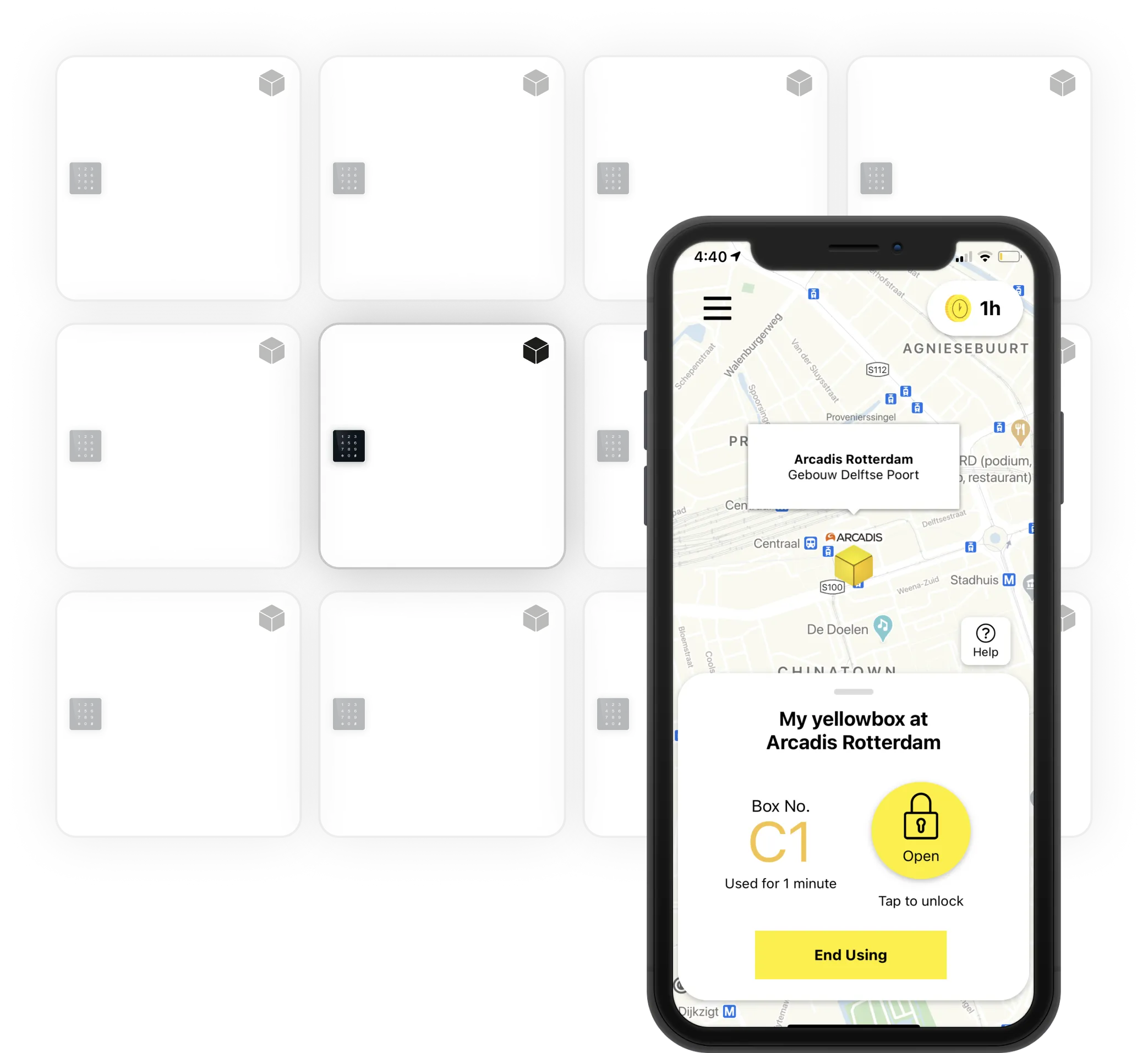
See how users use yellowbox through the app. This includes entering payment details or a library card.
How do users use the self-serve page? (Video)
See how users use yellowbox without an app, with the self-serve terminal.
How to use the Management App? (Video)
The management app contains multiple key features, including visibility over live usage, managing bookings, opening all or individual lockers, and support ticket raising.
How to use the Analytics Dashboard? (Video)
The analytics dashboard provides usage overview metrics, instant lookup of lockers, live events, ability to create bookings, configure your location and manage bookings.
How to help a user that has issues opening a locker (Troubleshooting video)
The user needs to have the app, with location and Bluetooth turned on and enabled for the Yellowbox app. Once tapping on the location box, the user will choose the Bay, and size of the locker. Then the panel should display a yellow Open button, which is used to open up the locker.
If the Open button is grey, the app has not been able to find the locker. Hold the phone closer to the assigned locker and tap on the keypad. If the keypad is not responding, then the lock is likely out of battery.
The dashboard will provide visibility over the battery level and when the locker was last ‘seen’ by a Yellowbox device. If the battery level is low and/or the locker was ‘seen’ much later than the lockers in the same Bay, the following actions should take place:
If the user is using the locker for the first time:
- Disable the locker, which will allow the user to book another locker and open.
If the user has belongings in the locker (or you want to fix the locker and un-disable it):
- You can charge the locker externally using a micro-USB cord and battery pack, by inserting the cord into the bottom of the keypad (after unblocking the white cover). The keypad should light up and now be opened by the App.
- If the locker has a low battery, you need to replace the batteries.
- If the locker has not been ‘seen’ when other lockers in the same Bay have been ‘seen’, and the battery is over 25%, there may be damage to the lock itself. Please keep the locker disabled and report this issue.
How do I open up a specific locker or all lockers?
In the Yellowbox app, simply ‘Sign In’ with your management account details. Tap on your location, where you will find the lockers linked to that location. Find the specific locker you want to open, and tap on it. You can choose to open with the Open button (of which you require location and Bluetooth to be enabled), or the Manager PIN (onto the keypad).
If you want to open all lockers, once signed into the management account, tap on your location. You will see the Open all button for each ‘Bay’ of lockers. Make sure you have location and Bluetooth enabled.
User can’t find the location on the map
If your location is private (only available to be seen by a set group of individuals, e.g. staff), then each user will need to gain access to the location in the app. They can do this by going into the side menu, by tapping the hamburger menu on the top left. Tap into Yellowbox Private, and search for your location. Tap on your location and enter in your private location code. Users can then see the location on the map and reserve a locker at that location.
When and how do I change batteries?
Change batteries by opening the locker. You will likely need to charge the lock externally using a battery pack with a micro-usb cable. Insert the micro-usb cable into the bottom of the keypad (initially covered by a white plastic cover). The keypad should light up and can be opened using the app or manager code. Remove the battery cover on the inside lock piece on the door. It will say ‘AAAX4’. Carefully remove each of the AAA batteries. Then insert the AAA batteries, two at a time, and place the battery cover back on.