Yellowbox Help Desk
Find videos and a comprehensive FAQ, to help you manage your Yellowbox system.
Tap the questions below to see detailed answers. Tap again to hide.
General
Question 1 How to use the Dashboard? (Video)
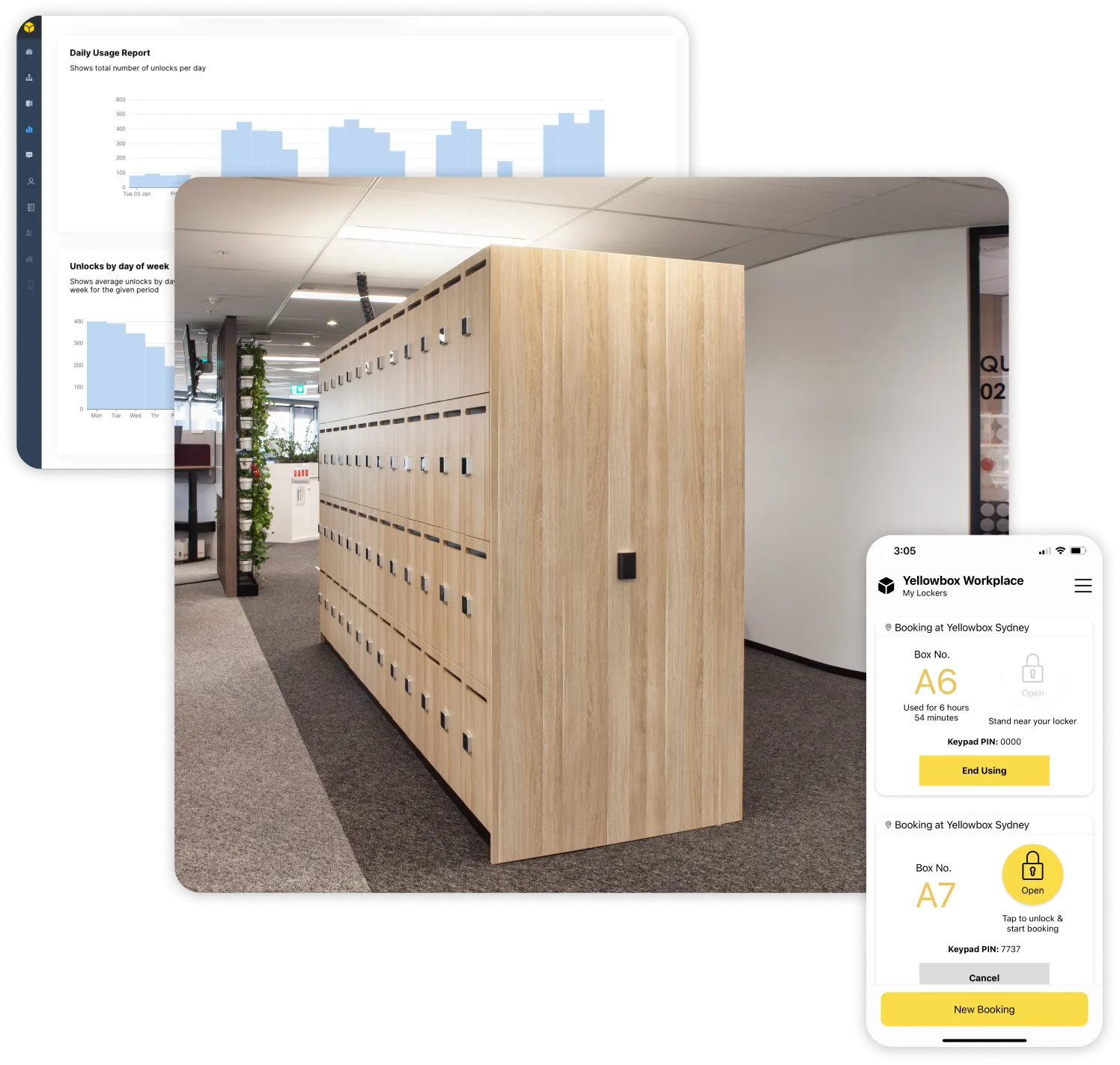
The dashboard contains multiple key features, including remote opening, usage audit trail, manage users, allocate lockers, email instructions, configuration of settings and the app, setting accessible lockers and viewing behavioural insights.
Question 2 How to use the Management App? (Video)
The management app contains multiple key features, including visibility over live usage, the ability to manage bookings, open all or individual lockers, and support ticket raising.
If SSO is not enabled, use the 'Sign in with email' option, and enter in the provided email and password.
Question 3 Dashboard and Management App User Guides
Question 4 How to setup and configure PIN lockers for visitors (Kiosk Touchscreen)
Question 5 How do I connect Wi-Fi to a controller using the Management App?
What this usually means Use this when a controller needs to be connected to a new Wi-Fi network or hotspot.
- Open the Managers app and go to Settings.
- Update controller Wi-Fi details.
- Make sure Bluetooth is on and stand near the controller.
- Select the controller you want to configure.
- Wait for the visible Wi-Fi networks to load.
- Choose the correct Wi-Fi network.
- Enter the password and update the controller.
- If using a phone hotspot, enter the hotspot SSID and password instead.
Escalate if still not resolved If the controller does not appear in the app or does not accept the Wi-Fi update, contact Yellowbox Support.
Question 6 Diagnosing internet issues
What this usually means The controller may be online but unable to reach the network properly, or the site may have lost internet access.
- Confirm the touchscreen is powered on.
- Confirm the RFID reader is powered on.
- Check whether the issue affects one locker, one bank, or multiple banks.
- If only one controller is affected, check its local power and network connection first.
- If the site uses Wi-Fi, reconnect the controller to Wi-Fi using the Management App.
- If the site uses hotspotting, verify the hotspot name and password are still correct.
- Perform the five-finger reset if the kiosk is unresponsive.
Escalate if still not resolved If the site still appears offline after power, reset, and Wi-Fi checks, contact Yellowbox Support.
Question 7 How to hotspot a controller (providing temporary internet to a controller/kiosk)
What this usually means The controller is offline but employees need access to the lockers.
- Open your phone settings.
- Go to Mobile Hotspot.
- Change the Network Name to 'yellowboxsetup'.
- Change the password to '88888888'.
- Turn on Mobile Hotspot.
- Go to the Yellowbox Manager App and go to Settings.
- Go to 'Update Controller WiFi'.
- Select the controller you wish to change the WiFi of, if unsure please confirm with Yellowbox Support Team.
- Select the WiFi network 'yellowboxsetup' and enter the password 88888888.
- Repeat for other controllers if required.
Escalate if still not resolved If the controller still appears offline or if the lockers will not open even when the controller is online, contact Yellowbox Support.
Question 8 How do I change the batteries for a wireless lock?
What this usually means The lock batteries are low or flat and need to be replaced.
- Open the locker.
- If the lock cannot power on normally, connect a battery pack using a micro-USB or USB-C (depending on the Wireless lock model) cable to the bottom of the keypad. The port may be covered by a white plastic cover.
- Once the keypad lights up, open the locker using the app or Manager PIN.
- On the inside lock piece on the door, remove the battery cover marked AA x4.
- Carefully remove the existing AAA batteries.
- Insert the replacement AAA batteries.
- Refit the battery cover and test the lock.
Escalate if still not resolved If the keypad still does not power on after external charging and battery replacement, contact Yellowbox Support.
Question 9 Can’t lock the locker
What this usually means The lock mechanism may need to reset, or the door may be misaligned.
- Open the locker again to allow the lock mechanism to reset.
- Try locking it again.
- If it still does not lock, inspect the door alignment.
- Realign the locker door with the lock and striker.
Escalate if still not resolved If the locker still cannot be locked after realigning the door, contact Yellowbox Support.
Wireless Locks
Question 1 Locker won’t open using the App or PIN Related: Error A4, Error A6
What this usually means The issue is usually one of four things: the lock has no power, the locker door is jammed, the PIN does not match, or there is a Bluetooth/app issue.
- Touch the keypad and check whether it lights up.
- If it does not light up, charge the lock or replace the batteries.
- If it does light up, note the colour: Green: The locker may be jammed. Unlock it using the app or PIN, then while the keypad is lit green, physically shift the keypad up and down to help dislodge the lock. Red: The PIN may be incorrect, or the lock may have had a physical reset. Reassign the user with a new PIN code. Blue: The batteries are low. Replace the batteries. Try unlocking the locker using the Management App.
- If it works through the Management App, the issue is likely with the user account, user phone, or user app.
- If it does not work through the Management App, try the Manager PIN.
- If the Manager PIN works, the issue is likely Bluetooth advertising. Remove the batteries, wait 10 minutes, reinstall them, and try again.
- If the Manager PIN does not work, press the reset button on the wireless lock for 5 seconds. The lock should make a noise once successfully reset.
- After a physical reset, fully close and reopen the Management App and try again.
Escalate if still not resolved If the locker still will not open after these steps, the lock likely needs replacement. Contact Yellowbox Support.
Question 2 Locker won’t open using card Related: Error A1, Error A4, Error A5, Error A6
What this usually means The card may not be linked correctly to the user, or the card type may be incorrect.
- In the Manager Dashboard, go to Users and search for the user.
- Confirm there is a card linked to the account.
- Confirm the linked card matches the user’s physical card.
- Confirm the correct card type is selected.
- Check for any unrecognised swipe cards.
- Remove the card from the account and add it again, or update the existing card details to match the user’s card.
Escalate if still not resolved If the card still is not recognised after relinking it, contact Yellowbox Support.
Question 3 Controller offline or unreachable (multiple lockers are not opening)
What this usually means The controller may have lost power, internet, or connection to the kiosk peripherals.
- Check whether the touchscreen is on.
- Confirm the power supply is connected properly. This may be through USB-C or Ethernet. Also confirm the power source itself is on.
- Check whether the RFID reader light is on. If the RFID light is off, check that the RFID reader is plugged in properly to the kiosk via USB-A.
- If both the touchscreen and RFID reader appear online, perform the five-finger reset.
- If needed, continue to the internet troubleshooting article. If the controller has lost Wi-Fi, reconnect it using the Management App.
Escalate if still not resolved If the controller remains offline after checking power, RFID, reset, and internet, contact Yellowbox Support.
Question 4 User is told to stand closer, but is already next to the locker
What this usually means This is usually a Bluetooth or phone permissions issue.
- Check that the user’s Bluetooth is on.
- Check that phone permissions are enabled for Yellowbox: i) On iPhone, enable Bluetooth and Location permissions for Yellowbox. ii) On Android, allow Nearby Devices and location access if required.
- Ask the user to force close and reopen the app.
- Check whether the app has an available update.
- Ask the user to restart their phone.
- If needed, clear the app cache or reinstall the app.
Escalate if still not resolved If multiple users have the same issue at the same locker, contact Yellowbox Support, as the lock may have a Bluetooth advertising issue.
Wired Locks
Question 1 Locker won’t open using the App or Kiosk Related: Error A4
What this usually means This is usually an access-method or controller-path issue rather than a jammed door. The quickest way to narrow it down is to check whether the locker can be opened using a different access method.
- If the user is trying to open the locker in the app, try opening the same locker at the kiosk using the user’s card or PIN.
- If the user is trying to open the locker at the kiosk, try opening the same locker in the app.
- If the locker opens with one method but not the other: i) App fails but kiosk works: This is likely a user app or phone issue. Ask the user to force close and reopen the app, check for updates, and sign in again. ii) Kiosk fails but app works: This is likely a card or PIN issue. Check the user’s card or PIN details in the Dashboard.
- If neither method works, check whether the controller is online and responsive. If the controller appears offline or unresponsive, follow Controller offline or unreachable.
- If the user sees “Controller failed to release after sending unlock command 3 times”, follow that article instead.
- If the issue still is not clear, retry once after a short wait.
Escalate if still not resolved If the locker cannot be opened by either method, and it is not a card/PIN issue, controller offline issue, or release failure issue, contact Yellowbox Support.
Question 2 Locker won’t open using card Related: Error A1, Error A4, Error A5, Error A6
What this usually means The card may not be linked correctly to the user, or the card type may be incorrect.
- In the Manager Dashboard, go to Users and search for the user.
- Confirm there is a card linked to the account.
- Confirm the linked card matches the user’s physical card.
- Confirm the correct card type is selected.
- Check for any unrecognised swipe cards.
- Remove the card from the account and add it again, or update the existing card details to match the user’s card.
Escalate if still not resolved If the card still is not recognised after relinking it, contact Yellowbox Support.
Question 3 Controller offline or unreachable Related: Error A4
What this usually means The controller may have lost power, internet, or connection to the kiosk peripherals.
- Check whether the touchscreen is on.
- Confirm the power supply is connected properly. This may be through USB-C or Ethernet. Also confirm the power source itself is on.
- Check whether the RFID reader light is on.
- If the RFID light is off, check that the RFID reader is plugged in properly to the kiosk via USB-A.
- If both the touchscreen and RFID reader appear online, perform the five-finger reset.
- If needed, continue to the internet troubleshooting article.
- If the controller has lost Wi-Fi, reconnect it using the Management App.
Escalate if still not resolved If the controller remains offline after checking power, RFID, reset, and internet, contact Yellowbox Support.
Question 4 "Controller failed to release after sending unlock command 3 times" Related: Error A4
What this usually means The locker has failed to open after repeated release attempts and should be checked using the standard wired lock opening flow. The door may be jammed. This is usually a Bluetooth or phone permissions issue.
- Trigger an unlock and listen for a click. i) If there is no click, the lock is likely broken. ii) If there is a click, the door may be jammed.
- Wiggle the door to help loosen it.
- Open the lockers above and below if needed to give better leverage on the affected door.
Escalate if still not resolved If there is no click, or the locker still will not open after trying to loosen the door, disable the locker with a reason in the Dashboard and contact Yellowbox Support.
Escalation guidance
Question 1 When to contact Yellowbox Support
Contact Yellowbox Support when:
- The lock still fails after the steps above
- A controller remains offline after power and reset checks
- A physical reset does not restore a wireless lock
- The lock appears broken or requires replacement
- The same issue affects multiple lockers or users and local checks have already been completed
When escalating, include:
- Site name
- Locker number of bank
- Whether the locks are wired or wireless
- What steps have already been tried
- Whether the issue affects one locker or multiple lockers